Tuesday, March 25, 2014

Using Socrative to Engage Your Students

Socrative is an awesome and free student response system that can be used on iPads (Teacher App & Student App) as well as computers through a browser. It is user friendly enough to be used with any grade level. A teacher can import pictures to be part of the questions, therefore even kindergarteners will find it easy to navigate and answer questions.

As a tech integrator I do not use Socrative very often with students, therefore I have scoured through videos and articles to create a one stop shop for information regarding Socrative.

What is Socrative?


Some Uses for Socrative


Socrative for Collaboration


New Features of Socrative


Socrative Tutorial


Other Resources:

1. Three Good Ways to use Socrative in Your Classroom
2. 13 Ways to Use Socrative as a Formative Assessment
3. My Favorite Mobile Apps #2: Socrative (+Lesson Ideas)
4. Socrative Exit Tickets

Monday, March 17, 2014

Moldiv and Pic Collage for Poetry

Today some 5th grade students created Limericks for St. Patrick's Day, however this idea can be used for any holiday or non-holiday poetry.

The classroom teacher, Mrs. Lucy, taught her students how to write limericks and the students spent some time writing before I joined them and demonstrated the highlights of three apps.

Apps Used… All free… 

Art App - Students can draw/create pictures to use in any other application on an iPad. Then save the artwork to the photo gallery from where the creation can be used in another app.

Moldiv - (Creation to the left.) Is a great pic frame type app that the user can import pictures from the photo gallery, customize the frames, and add text. In this example the student chose one frame in order to have enough room for their poem.

Pic Collage - (Creations below.) Is a really great pic collage app. The user can import pictures from their iPad's photo gallery, but also get pics from the web, or add stickers all within the app. Users can get a little more creative with the text as well. For example the limerick below on the left has all the text within yellow text boxes.

 
Once the students finished, they emailed their project to their classroom teacher and myself. If you are lucky enough to have a newer iPad, you can share via airdrop. (Grades 2-3 have this option in our district.)

A couple more examples:

Created with Moldiv


Created with Pic Collage


Wednesday, March 12, 2014

Students Love it, iMovie!

It shouldn't amaze me how quickly students discover ways to create with any given iOS app, but it still does… I have been using iMovie with 2nd-5th grade students during the last two weeks and they, the students, are fascinated to create using iMovie. Not only are they in love with the app, but it is almost an instinctive app. Students are producing movies about parts of speech, animals they researched, book trailers, president reports, etc. It is amazing to see students so excited about creating something from information they have learned. The beauty is, they will watch their creations over and over, which means the information will really sink in if it had not already during the research and creation process. If students create book trailers, upload the video to YouTube and then make a QR Code to attach to the book that the video is about. Soon enough you will have a library full of books with trailers to entice little readers to read books in your classroom library.

Tutorial Video:
)


Student Examples:

Book Trailer (5th Grade)
)

Pronouns (3rd Grade)


Adjectives (3rd Grade)
)

Elephant Report (3rd Grade)
)

Book Review (2nd Grade)


The Snowshoe Hare (4th Grade)
)

President Report (5th Grade)

Teacher Example (Trailer)
)

Teacher Example (Movie) )

Tuesday, March 4, 2014

Story Me for Literacy and Beyond

Story Me (free) is a super fun comic strip creating app for students and teachers alike. With Story Me's intuitive ease of use, students will create comics strips quickly and instinctively to demonstrate their knowledge of subject matter or to enjoy the writing process. Users can choose from a variety of frame styles. Once the project is complete, there are many sharing options available. With the latest (Nov. 2013) iOS devices, AirDrop is my favorite way to share. For older iOS devices, email and Google Drive work nicely.

One of my favorite features of the app is that any picture that the user adds to the comic strip will be cartoonized (Yeah, I made up my own verb.) I love this feature because it makes it easier to post pictures of students. I am less worried about accidentally using a pic of students who do not have permission to have their image posted on the internet. Within the app the cartoon feature can be adjusted from a normal photograph to extreme cartoon.


Student Examples and Inspiration


Students in third grade researched a
person to write a biography about. As a part of their project, the students created a comic strip featuring the person they researched.


In this example the student was playing with the app to learn how to use it. In the end this third grader came up with a humorous way to express themselves and the photos that they took of things within their classroom.


Story Me is a great way to collect digital evidence for different math standards along with any other subject. Have students add their evidence to their digital portfolios.


Second grade students wrote the procedure to making oobleck, a Dr. Seuss science experiment. Story Me is a great application for writing out steps or directions for a variety of things.

Thursday, February 13, 2014

The Five Best Apps for Math

A colleague recently asked me if I would give her a list of the five best iPad apps for Math. It is hard to dwindle it down to five, so here is my attempt in no particular order…

Number 1: Educreations - With Educreations students can explain their thinking as they work through and solve math problems. When teachers/coaches watch a student's creation, they can figure out where a particular student needs assistance.

Student Example - In this example the teacher will be able to have a conference with her student about finishing the last step of the problem or she could ask her student to watch his Educreations creation in order to figure out what he might have missed.

How to Use Educreations Tutorial - A nice video tutorial covering how to use Educreations.

Alternative and similar Apps to Educreations(free): Explain Everything(paid) and ShowMe(free).


Number 2: ScribblePress - Using ScribblePress students can create word problem books, a book of algorithms, a book of shapes, etc. ScribblePress books can be shared to iBooks for anyone to read on the iPad or emailed to parents to open up on any device from home. A perfect way to share what students are learning while at school. In order to share, you will need to create a free ScribblePress account.

Student Example - In this example a third grade student explains the steps for multiplying two 2 digit numbers.

How to Use ScribblePress Tutorial - Tutorial by third grade students.

Alternative and similar Apps to ScribblePress(paid) - StoryKit(free) and BookCreatorFree(free).


Number 3: TenMarks - TenMarks(free) is not an app, but can be used through a browser on an iPad like Safari. The data that is provided to a teacher when students are using TenMarks is phenomenal. Almost every student I have worked with on TenMarks are highly motivated to do well because of the great way the site is set up. Students can earn games and certificates. Teachers can individualize assignments for each student and students don't really know that one student is doing something more difficult or easier than another student. If a student is struggling with a question, they can choose to read a hint or watch a tutorial video. It really helps students become independent learners. Plus TenMarks aligns their assignments with the common core standards.


Number 4: Sail Through Math(free) - Every once in awhile you need a good practice app and this one delivers. Sail Through Math is a fun way to become fluent with math facts. Students have to click on the correct answer to a fact problem as the answers shoot out of canons on a pirate ship. If teachers want evidence of learning, have students take a screen shot of their score and email it to their teacher or upload the screen shot into student digital portfolios, like Evernote(free) or Google Drive(free).

To take a screen shot hold down and release the home & sleep buttons at the same time.


Number 5: StoryMe(free) - With StoryMe students can create fun comic strips demonstrating their understanding of a math standard. I have yet to use this app for math, but I have used ToonDoo on laptops with students to create math comic strips and the students did a great job with demonstrating their understanding of fractions and other math concepts. StoryMe is one of my new favorite apps, but since it is still so new to me I have only used it with classes as a language arts tool.


Monday, February 10, 2014

Students Using AudioBoo Video

Not too long ago I wrote an article about using AudioBoo in the classroom. It really is one of my favorite tools in the classroom. Recently I created a video demonstrating students using the App and I wanted to share it. Enjoy!


Friday, January 31, 2014

QR Code Caprice

QR Codes can bring a classroom or project to life… I can not take credit for all of the QR Code ideas I am about to share. There are so many creative teachers inspiring students and I wanted to share some of the ideas I have come across during my travels as an integrator. QR Codes can be created with an iPad or a computer. At the end of this article I will explain ways to create and read QR Codes.


1. Make a Project Come to Life: For any project, book report,
collage, poster, lab report, artwork, etc. have students record their voice using an app like AudioBoo, or a website like Record MP3 talking about their project, explaining their understanding of a concept, or reading the story that goes along with their project.  Or have students make a movie or movie trailer using an app like iMovie, the camera on an iPad/iPod, the camera on a laptop, the movie editor in YouTube, a Flip Camera and software, or other various video recording devices plus software. Then upload the video or audio to a site that will give the work an url like Flickr, YouTube, Vimeo, or Picasa. From there students can create a QR Code to print and attach to their project. AudioBoo generates QR codes directly on their site.

In Photo Above: Mrs. Lariviere's 2nd grader's Monster Stories, QR Code leads to student audio story.


2. The QR Keychain: Create a keychain of QR codes based on different needs in the classroom. The keychains can be for independent study math videos, tutorials, audio books, classroom library book reviews, morning messages, favorite websites for each standard, etc.

Keychain photo provided by http://www.pinterest.com/katstaton/


3. A QR Scavenger Hunt: Create a scavenger hunt. Most QR generators allow the user to have a QR Code for simple text. This brings me back to finding my Easter Basket during childhood. My parents created clues that led to new clues within plastic eggs that would eventually lead me to my Easter Basket. I think that I will create a hunt using QR Codes with my own children this Easter. Teachers do not have to be the only creators. Creating a scavenger hunt would be a fun task for students as well, especially for those students that need an extra challenge.


4. Book Reviews/Trailers: This can be done in audio or video form using apps like the ones mentioned in example #1. The QR Code can be archived/attached on the back of the actual book for students to continue to use every school year or made into a bulletin board to share with others for that moment in time. If you use the bulletin board format, I recommend taking some time for a museum walk before the bulletin board is removed.


Bulletin Board: Mrs. Cartwright, 4th Grade


Museum Walk: Ms. Nason, 3rd Grade


5. Center Work: Have QR Codes displayed during center work. It will help students quickly get to their destination on the device they are using. When students complete the assignment, they can be prompted to another QR Code. Help videos can be included at the center so that your time is freed up to work with students in small groups.


6. Writing Promt Dice: A student is stuck on what to write about. Let them roll for ideas. Check out these writing prompt dice and print your own from my Literacy Site


7. Videos Demonstrating SOPs: Record students acting out the proper way to do different things in the classroom. Then when a student does not remember the appropriate Standard Operating Procedure, they can watch the video by scanning the corresponding QR Code. This allows for students to have a learning time out where they can find a quiet place to sit and watch a video on the expected behavior or procedure for any given circumstance.


8. Self Check Work: Create answer checks for any work that has a correct answer, as much as I am not a fan of worksheets, this idea works well with math. Even better, have a QR code on the top of the worksheet linked to a video explanation of how to do the work, like algorithms. After a student checks their answer, they can watch a "How To" video if they did not get the answer correct before moving on to the next problem.


Making a QR Code: To make a QR Code on an iPad, I like to use QR Reader or Qrafter (Not all options are free when using Qrafter). All you need to do is click create, once in the app, and then choose if you want the QR Code to send to a person's device, to a web address, phone number, simple text, GEO location, email address, etc. You can email the QR Code to yourself to print it if you do not have a printer hooked up to your tablet. (Remember, all on-line videos have an unique web address.) When on a computer I like to use a simple bookmarklet that I added to my browser tool bar or if I want to create a fancy QR Code I use Visualead or QRHacker. Great Video on QR Code Creating.

Reading a QR Code: To read a QR Code on an iPad, I like to use QR Reader or Qrafter. 1. Click on a QR app. 2. Then click on scan. 3. Lastly, put the code in the middle of the scanner screen. Sometimes you have to move the iPad a little to get the code to scan. The website will open up within the QR app, but you also have the option to open up any site in Safari or another browser if you click on the share button. I don't really scan on a computer, however there is software to download if your computer has an iSight camera.


Photo Gallery of ideas:

Ms. Burnell, 2nd Grade, Holiday Memory Writing Activity


Mrs. Melcher, 2nd Grade, Book Review


Mrs. Melcher, 2nd Grade, Algorithm Poster


Ms. Nason, Grade 3, Penguin Project


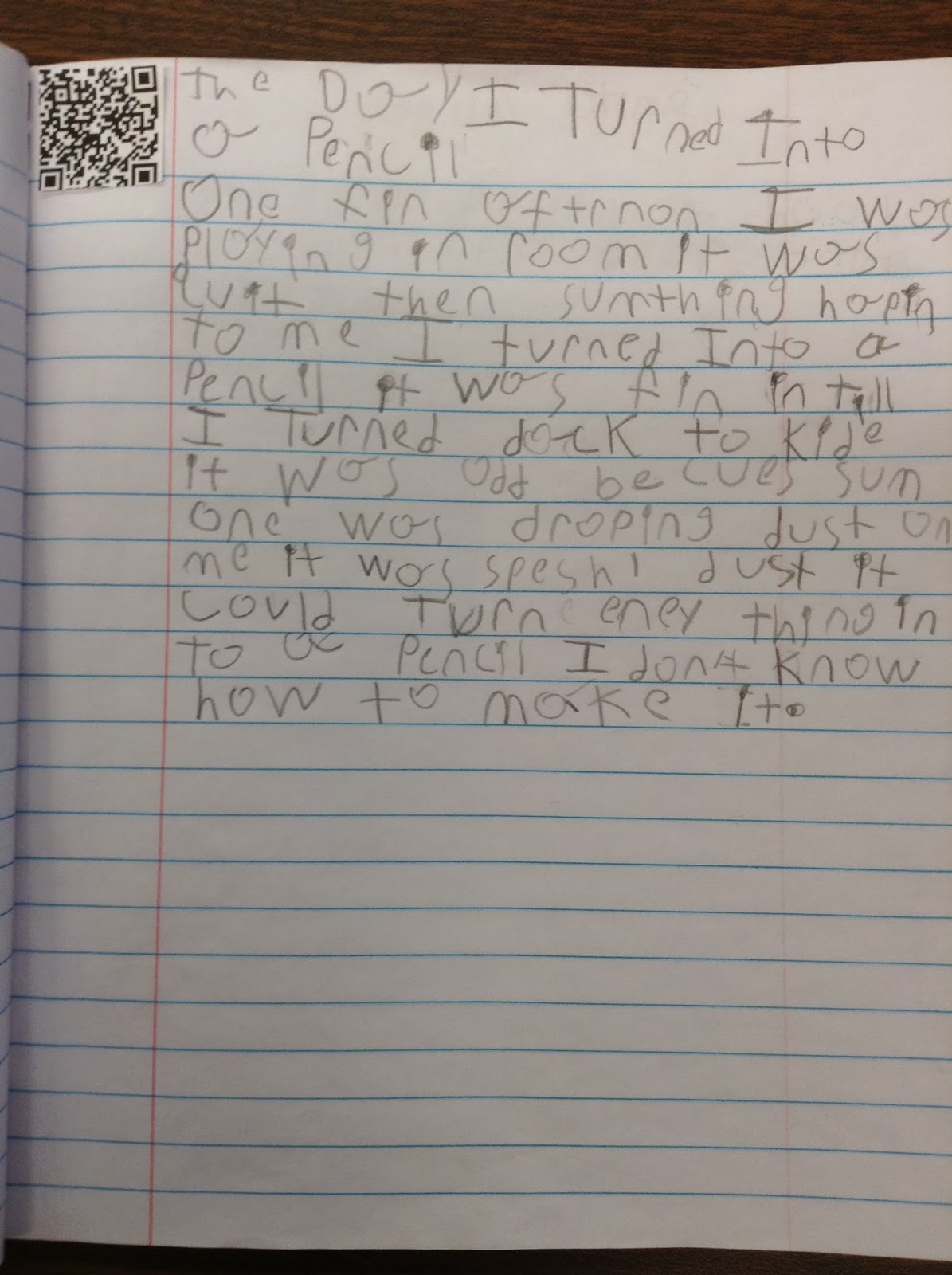
Ms. Nason, Grade 3, Add Voice to a Writer's Notebook


iPad Cart



Friday, January 17, 2014

New Apps for SAD6 iPads

Below is an email message that I sent to my staff (K-5 teachers) today.

I have added a few new apps to all of the carts.

*ScribblePress - A fabulous book creating app with excellent art tools, stickers, and the ability to import photos. The template has a Title Page, Story Section, and Author Page. Books can be exported to iBooks or sent by email. More info or More info

Story Me - The app that I raved about recently. Students can create comic strips and share easily.

Zalairos Adventures by Skoolbo - This app is loaded with 25 different read along chapter books. 

*Green Screen by Do Ink - Capture videos of students in front of a green screen and then add any background you want. Your students can be in the Rain Forest, in front of the White House, or even on top of a mountain.

Funny Movie Maker - Use your mouth on any picture and record your voice. An extremely fun creation app. Students will love to say their multiplication facts, describe a project, or state their vocabulary words & meanings.

Number Pieces - A virtual set of Base Ten blocks.

Chicken Coop Fractions - A fun way to work with and learn about fractions.

Geoboard - A virtual geoboard. No more flinging rubber bands. :0)

The two starred items above are paid apps and have been also added to your classroom iPads.

Have a great long weekend!
Nicole Gleason
Technology Teacher/Integrator SAD#6
BlogWebsite, and Wiki
George E Jack, Steep Falls, Edna Libby, and HB Emery Schools

In the final analysis it is not what you do for your children but
what you have taught them to do for themselves that 
will make them successful human beings. 
Ann Landers

Wednesday, January 8, 2014

NWEA/MAP Web-based Testing

During the month of January I will be proctoring NWEA/MAP tests in all four of my elementary schools. In the past we have used software that is downloaded onto computers to administer the test, but this year the test is on-line. A secure browser, provided by MAP, needs to be downloaded onto each computer. Other than that, testing is web-based or quoted from my new favorite movie, The Internship, "on the line".

There is always a learning curve when trying stuff for the first time, so I would like to share some of the things I have learned so far to help make the testing experience a bit smoother for any educators that have to administer web-based NWEA/MAP testing.

1. Only one testing session can be run at a time, per educator account. Often some students do not finish within the allotted 70 minutes that classes are scheduled to be in the lab testing. In the past I have allowed the students to remain with the next scheduled class to finish testing by pausing their test and then once the next class is ready to test the students from the previous class can continue testing. The best way to continue with this practice within the new system is to suspend the unfinished tests, start a new session with the next class, and then add the students that need to finish their test to the new testing session.

2. Test session names are randomly created. If you get an awkward name, end the session and start over. I had one session come up as swore4646.

3. Have students log into the session first before you go over the instructions. The first time I tested a class, I did not realize that it would get to a point where students have to wait for the proctor to confirm testing to begin. Once I get students to the place where it asks for students to wait for a proctor, I then go over the instructions.

4. Great resources: Testing Step by Step and Student Practice Plus Prep

Happy testing!