Monday, October 28, 2019

Flippity for Building Educational Games and Other Classroom Tools

https://www.flippity.net/Wicked AWESOME tool/interactive game building site including spelling games, bingo cards, matching games and much more! That about sums it up, but I will go on to share more information. All of the options can be customized to the content you are using with your students. Lindsey Cawood and I presented a session on Flippity at MassCUE recently, a technology focused educational conference. Lindsay made some really good examples for a couple of the options. Click Here for pre-made bingo cards and spelling games. Click Here to go to the presentation Slide Deck to check out what we presented. Also I recently made a connection with Kevin Spencer via Twitter and check out his superb resources for Flippity!


Wowser! Scroll down to be amazed with all of the things you can make and many of them are interactive for students on their own device. Bonus: Flippity works on any device! I personally love the Bingo Cards, Matching Game, Snowman (Hangman), and Spelling Games.


Pics of the fun we had! I highly recommend attending MassCUE!


Monday, October 21, 2019

Read With Me Blogs for Literacy Centers

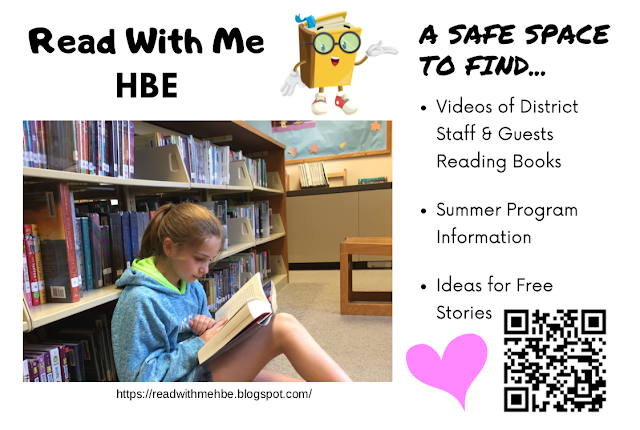
Before summer break I had created a Read With Me blog for each school for summer reading. Miss Drew and I were chatting recently because she was looking for safe places to send students for more reading material beyond Epic! and Vooks on iPads. We decided the blog that is already created for each school would be a great resource. Students can scan a QR code (printable QR flyer below) and then have access to all of the on-line stories that have been posted/vetted without having to actually go to YouTube. More stories can be added at any time. Just let me know what you want on your school's blog. [Read with Me HBE - Read with me Edna - Read with Me Steep Falls]

Here is a video of students sharing how to use the blog...


Print out these QR posters for students to easily access the blog from their iPads.
(Click your school flyer below to print.)


https://drive.google.com/file/d/1KBMa3Ah0yDbaX7GEIaO1Ioy5VCp3-YlN/view?usp=sharing


https://drive.google.com/file/d/1zkEaZcAxU1mMMWSqKqJoaDcbItlBk6Rc/view?usp=sharing


Tuesday, October 15, 2019

ChatterPix Kids for Literacy

ChatterPix Kids is an extremely engaging, adding voice to a pic, App that can be used in any grade level (K-5). It is an especially useful tool for literacy because students can record themselves reading their work or someone else's work. Students can listen to their recording and evaluate their fluency. It is also an awesome tool to bring photographs of projects to life. ChatterPix projects can be downloaded to the iPad Photo Library and then uploaded to other Apps like Seesaw to share with family and classmates. I hope that you unlock the power of ChatterPix Kids with your students! Below are examples of students projects.


K students in Mrs. Turgeon's class created snowmen using Google Slides, wrote stories about their snowmen, and then recorded themselves reading their story in ChatterPix Kids.


1st Grade students during a Digital Citizenship lesson by Common Sense Media followed up with summarizing what they learned in the lesson using ChatterPix Kids.


3rd Grade students in Ms. Nason's class drew Christmas art characters and then wrote a quick character voice story.


4th Grade students during a Digital Citizenship lesson with me wrote a pledge to conclude our lesson and used ChatterPix Kids to record themselves reading the pledge and bring a social media icon to life.


3rd Grade students in Mr. Hulit and Ms. Nason's classes created area/perimeter robots. They finished their project by recording themselves in ChatterPix Kids. This activity gives you an idea how any student project can be brought to life.

Monday, October 7, 2019

Printer Settings for Using Our New Printer System


Directions for Printer Settings for Using Our New Printer System 


Go to the Apple on the upper left of your laptop screen and choose System Preferences. Then choose Printers and Scanners. Check to make sure that your Default printer is either Last Printer Used or MSAD6 Printers. Also make sure that your Default paper size is US Letter. If you get a pop up when you print asking for a user name and password, use your email address for the user name and your email password is the password to use.Once you have set the defaults you should be good unless Paul E runs an update. In this instance your defaults may reset. If they do, just go back into system preferences and adjust your defaults again.


Apple Classroom for Monitoring Student iPads

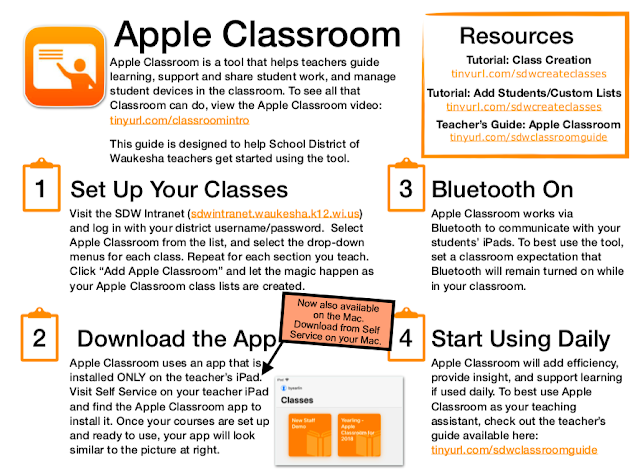
Adding students to Apple Classroom is done by the classroom teacher this year. This will allow you to add students that are in your flex groups from other grade levels. Having teachers add students themselves, rather than Ryan making the groups, is the only way to make this flexibility happen. Good news is... you can also monitor/control student iPads from your laptop this year.

Here is a link to instructions created by Apple and another article for using the app on a teacher iPad. You will need to download the Apple Classroom app from the Apple App Store on your iPad, not Self Service. If you need a user name and password, shoot me an email. The App is already loaded on your laptop. Guide for Laptop Use See below for a tutorial video for using it on an iPad and your Mac.

Skip Step #1
https://drive.google.com/file/d/1NFV5R-YXJgP11bdDjDQMHUnXyDkRPmoY/view?usp=sharing


Monday, September 30, 2019

Duplicate Yourself: Independent Dictation Centers

Our school district, MSAD6, has been focusing on flex grouping our students for literacy (Students are grouped based on their learning needs and their groups are fluid as student needs change). During the flex time, the classroom teacher meets with small groups to customize learning to meet student needs. While a small group of students are meeting with the classroom teacher, we aim to create centers for the rest of the students that will engage and push students to learn, discover, and grow independently. So if a teacher can duplicate themselves using technology by the means of video recording a part of the lesson, they can customize the independent centers as well. This also saves valuable whole group time for mini lessons and skill reviews and guided reading time with the classroom teacher for more focused skill work. Dictation is just one example of how teachers can duplicate themselves via technology.


I have been making some dictation videos for Mrs. Emery at HBE so that I can be a helper in her class without actually being physically there. Mrs. Foley has been making her own dictation videos at Edna Libby, plus I helped the principal, Mr. Vacchiano, create one as a guest video visitor for Mrs. Foley's students. We have been putting these videos into Seesaw as an Activity so that students can access the videos quickly for independent work. I even heard a couple 1st graders say that it was fun. I'd say that if a kiddo thinks dictation is fun, we must be doing something right! Another plan, once all of the videos are created, is to have the dictations in a Book Creator book. The reason we might go this route is so that students are not able to click on other videos in YouTube.

Here is the YouTube Dictation Playlist for Review of A to E Skills: Dictation Playlist
Here is the Activity link to the 1st activity I put on Seesaw: Dictation Levels A-E Skill 1 
Here is the Activity link to Mrs. Foley's Day 7 on Seesaw: Day 7

You can also search for the activities in Seesaw because we have contributed them to the Community.


Dictation Books Created by Carrie Thurston


Monday, September 23, 2019

Google Expeditions: More Than a Fun Tool


Virtual field trips are an awesome way to help students visualize what they are learning about or making connections to their learning. Since we already have a kit... Expeditions are very inexpensive field trips.

For example I had a third grade class that was reading a book that took place in Egypt and that classroom teacher took her students, using Google Expeditions, to Egypt to see the Pyramids. Another class, 2nd grade, was reading Charlie and the Chocolate Factory and they virtually visited a chocolate factory. There are a lot of Expeditions that can be used with science or social studies standards. You could use an Expedition as a writing prompt. If you think outside of the box, any of the Expeditions that include numbers in the information for each slide can be used to create math problems. See video below.

I created a Google Expedition for the Tour of Standish so that 3rd grade classes at Edna Libby and Steep Falls don't have to take the tour via a bus ride. Link Here Also below is a tutorial video on how to search for Expeditions on your iPad. On your laptop search here or check out this Doc. When you make an appointment with me please let me know which tour you would like to do.


Using Google Expeditions for Math


Google Expeditions AR: Great for when you don't have a kit!


How to Search for Google Expedition Tours on an iPad

Monday, September 16, 2019

Book Creator Ideas for All Subjects


Book Creator is one of my favorite tools for elementary students. In my school district we use it on iPads, however it can be used with any device. Tech Coaches in MSAD6 have created several digital interactive workbooks for educators to share with students. Click here for access. Some of the digital interactive workbooks include Next Generation Science Standards books for most grades. The interactive science workbooks have links to interactive games and videos that open up within Book Creator so that students don't get lost searching around Safari or YouTube. Students add to the workbooks as they learn. Lastly at the end of most of the science workbooks there is a document that shows what standards were covered and resources for educators. Many grades have more than one science digital workbook available and there is more in the works. Also there are a variety of literacy books like Vocabulary Journal, B or D?, Hunks and Chunks, My Alphabet Book, and My Scrabble Word Book plus the books you see in the image below right.


The Book Creator team is constantly making it an even more awesome tool for students. For example this summer they added an auto draw feature where the user starts drawing an object and the App will give the user picture choices to choose from. Students just need to make sure to choose the auto draw pen before drawing.

Below you will find resources to get you started with how you can use Book Creator in the classroom with your students, tutorial videos to follow along as you work with Book Creator, and videos of students using Book Creator to learn.


Resources

Visit Book Creator Resource Site for Tons of Ideas
Click an Image Below to Learn More


Tutorial Videos


Students Using Digital Workbooks in Book Creator


Tuesday, September 10, 2019

Word Cloud App to Enhance a Google Doc Writing Piece


The Word Cloud App by ABCYa is a wonderful creation App that makes writing fun. Students are motivated to know that they are going to do something special with the words they type.

A couple fun projects for the beginning of the school year...


Ms. Nappi had her students write Bio Poems in Google Docs. Then when I visited the classroom we had students copy their poem and paste the words into the word cloud app. From there students had fun adjusting the word cloud until it looked how they wanted it to display. After students saved their project they made a black and white version that will be 3D printed to serve as classroom avatars.


Mrs. Gervais' class recently did a project with word cloud as well. Her students wrote their thoughts and ideas about being kind to one another in Google Docs. Then her students copied and pasted their words from docs into the word cloud app.

*Students could also place the image they create with Word Cloud into their Google Doc for a nice visual.


Video Tutorial...
How to use the Word Cloud App: